For some reason, none of the AI chatbots currently let you export chats to PDF. It would be a handy feature, but it just is not there. So you have to use extra tools.
The easiest way is to save the chat with a special browser extension. This method works only on desktops (PC, Mac, Linux).
Let's do it!
Install the browser plugin
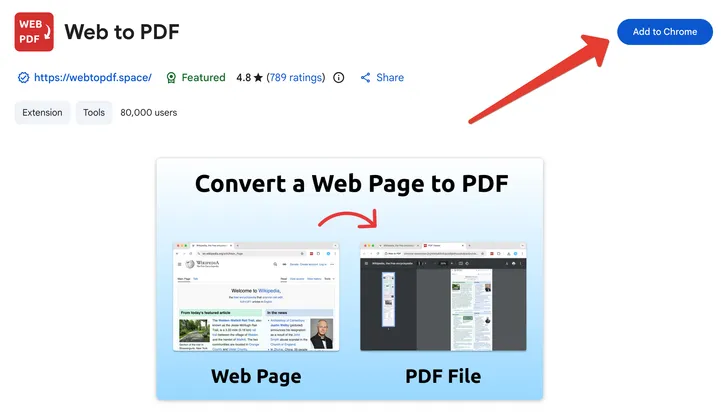
Follow the link and install the browser extension Web to PDF from the official Chrome Web Store.
Open the chat in the bot
Open the AI chatbot and choose the conversation you want to export.
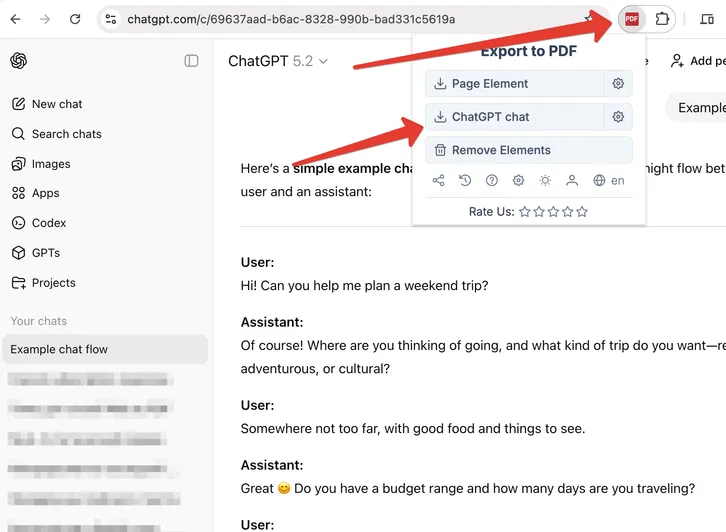
ChatGPT to PDF
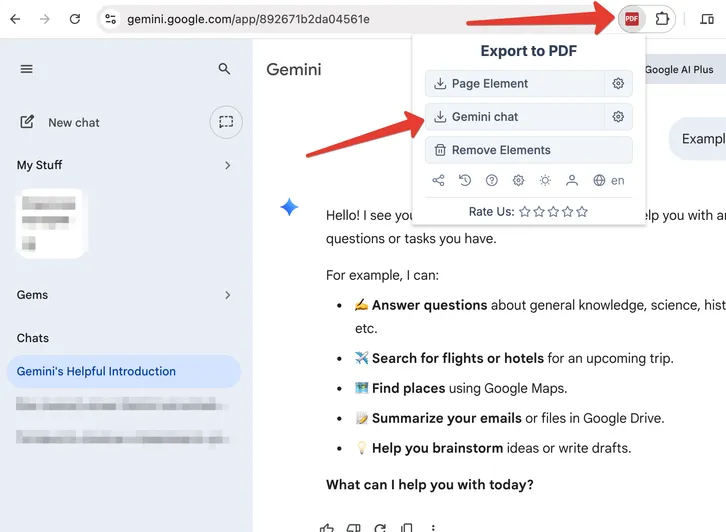
Gemini to PDF
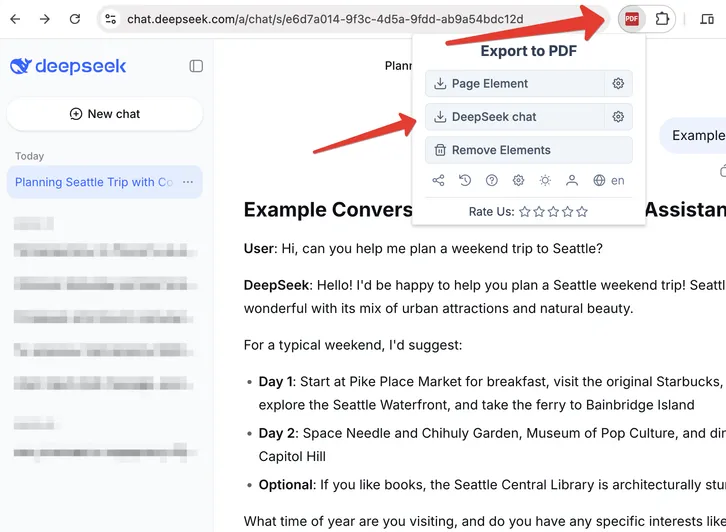
DeepSeek to PDF
Set extra options
For example, if you want to print the chat later, check "Multi-page PDF" and set the size. In this case the PDF will be split across several pages.
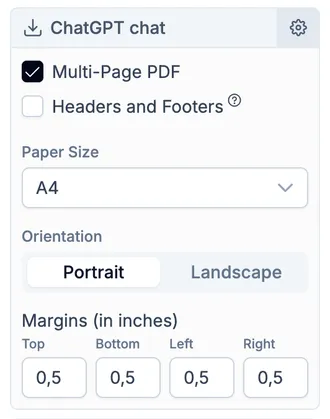
If you do not change anything, by default the whole chat will be exported on one page. This is handy when you want to save a chat as a PDF to share it with someone or read it later.
Why save AI chats to PDF
Here are a few reasons to save important conversations to PDF:
- A chat can disappear at any time, and you will lose valuable information.
- You want to share messages with a friend but worry about sharing something personal. In that case it is safer to send a PDF file that contains only what you want.
- You want to save information and access it later in places without internet.