There are several ways to save web pages to PDF. Some work only on desktop, others work on both desktop and mobile. Let's review them and compare.
Built-in browser print (CTRL+P)
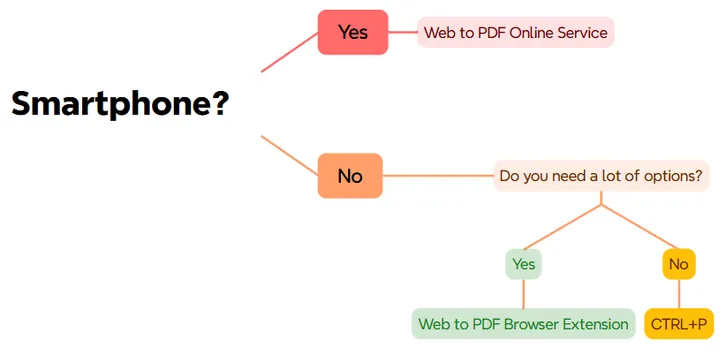
If you do not need a wide range of settings or original styles and you are on desktop, CTRL+P is enough.
| Supported devices | 💻 Desktop only (PC, Mac, Linux) |
|---|---|
| Wide range of settings | ❌ No |
| Access to restricted content | ✅ Yes |
Web to PDF online service
If you need to save a page to PDF from a smartphone, the online service is the only option. It has more features than CTRL+P, but it cannot convert pages that require login.
| Supported devices | 💻 + 📱 Any device |
|---|---|
| Wide range of settings | ✅ Yes |
| Access to restricted content | ❌ No |
Web to PDF browser extension
If you work on desktop and want the closest result to the original page and more options, the browser extension is the best choice.
| Supported devices | 💻 Desktop only (PC, Mac, Linux) |
|---|---|
| Wide range of settings | ✅ Yes |
| Access to restricted content | ✅ Yes |
Comparison by features
| Feature | CTRL+P | Online service | Browser extension |
|---|---|---|---|
| Works on phones and tablets | ❌ | ✅ | ❌ |
| No installation required | ✅ | ✅ | ❌ |
| Article mode export | ❌ | ❌ | ✅ |
| Select and export an element on the page | ❌ | ❌ | ✅ |
| Export chats from ChatGPT, Gemini, Deepseek | ❌ | ❌ | ✅ |
| Remove elements from the page | ❌ | ❌ | ✅ |
| Export content behind login | ✅ | ❌ | ✅ |
| Export in single-page format | ❌ | ✅ | ✅ |
| Preserve original styles | ❌ | ✅ | ✅ |