Let's see how to save a web page to PDF using the print function built into every browser.
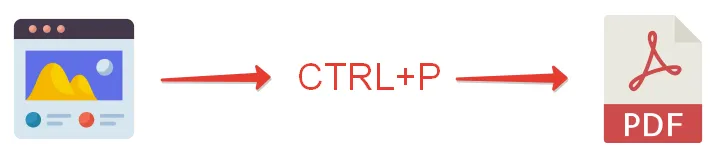
If you use a desktop computer (PC, Mac, Linux), your browser has a built-in print function that opens with CTRL + P.
Quick instructions
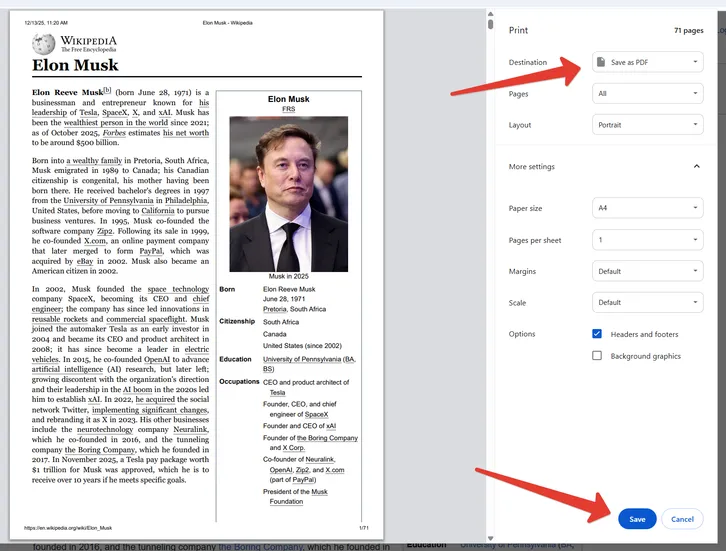
- Press CTRL+P to open the PDF preview dialog
- On the right you will see settings. Make sure “Save as PDF” is selected in the “Destination” field
- Click “Save” and choose where to save your PDF
Available options
You can set the following:
- portrait or landscape orientation;
- paper size:
- Legal;
- Letter;
- Tabloid;
- A0;
- A1;
- A2;
- A3;
- A4;
- A5.
- margins;
- scaling;
- headers and footers;
- background graphics.
Pros
- Built into your browser, no extra installation needed.
Cons
When to use it
It works best when you want to print a page on paper. But it is also useful when you need to quickly save content right now with minimal settings.